
Delete a News Feed
To keep your Loyalty instance uncluttered, the best practice recommendation is to delete unneeded or test News Feeds. The deletion process is permanent and irrevocable; you can’t later restore a deleted News Feed.
To delete a News Feed:
-
Select Communities from the top navigation bar, then select News Feed from the side navigation menu. The News Feeds screen is displayed.
-
Search for and select the desired News Feed (see Search for a News Feed for more information on the available search options). The News Feed Details screen is displayed, with the Posts tab displayed by default.
-
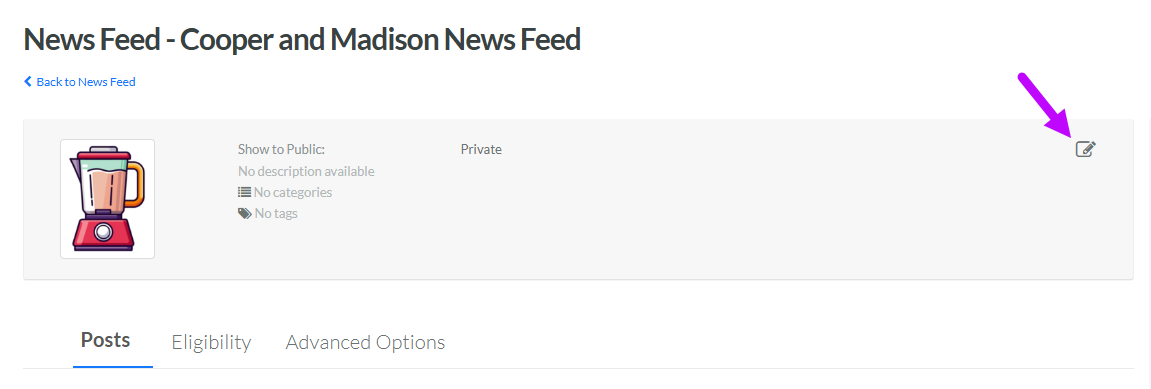
Within the header area of the screen, click the Edit icon. The Edit News Feed pop-up window is displayed.
-
Click Delete. A confirmation dialog box is displayed; click Confirm.
